Module: Module 0 — Getting Started
Estimated Time: 30–45 minutes
Prerequisites: Lesson 0.1 and Lesson 0.2
Learning Goal
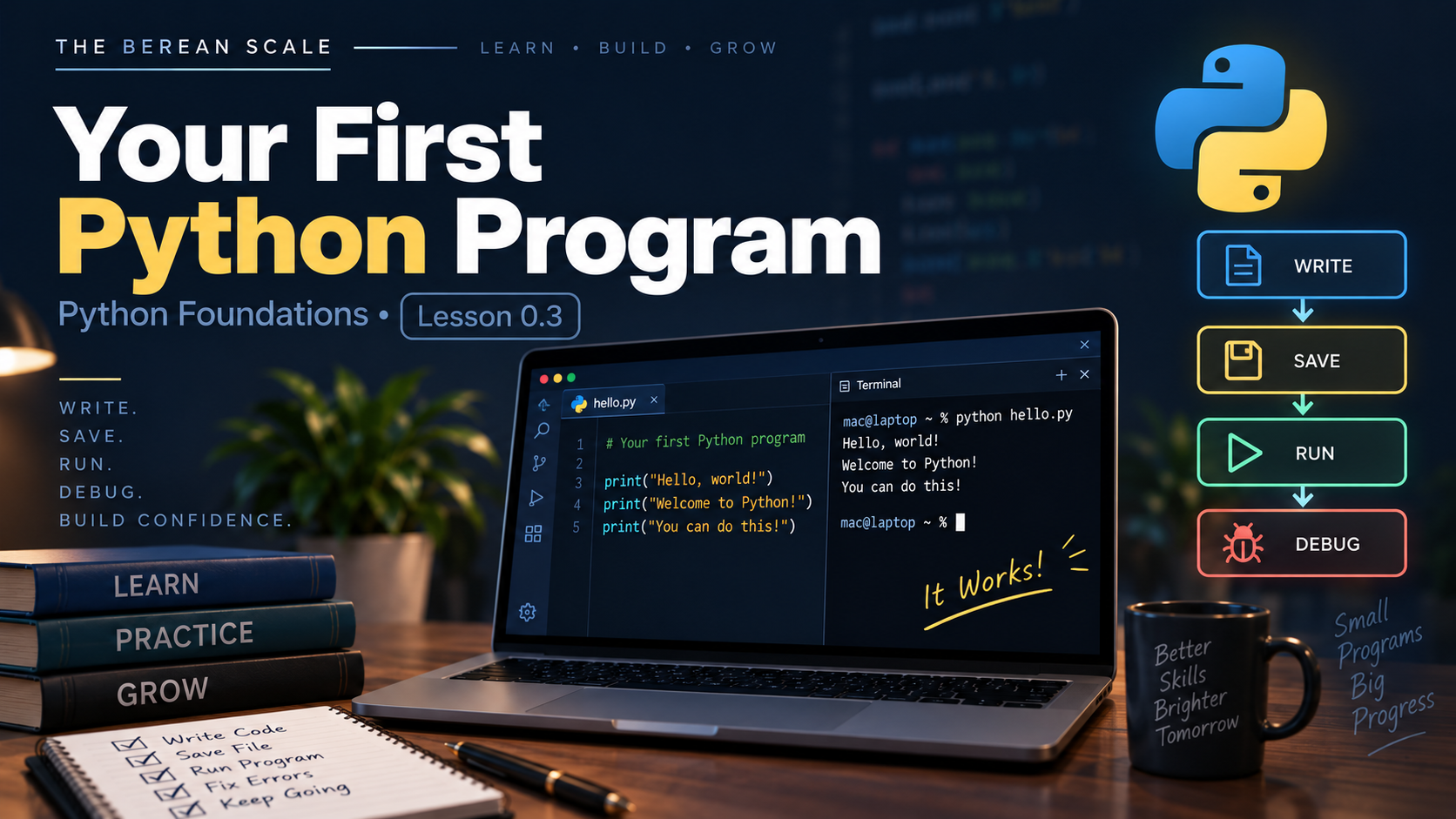
By the end of this lesson, you should be able to create a Python file, write simple print() instructions, save the file, run it from the terminal, change the program, and recognize a basic syntax error.
1. The Need
You now know what a program is.
You also have:
- Python
- VS Code
- A terminal
- A course directory
But knowing what programming is is not the same as programming.
Now we need to cross that line.
You are going to create an actual Python file, give the computer instructions, run those instructions, change them, and see the result.
For the first time in this course, the code will be yours.
2. Create a Module 0 Directory
In the previous lesson, you created your main course directory:
berean-scale-pythonOpen your terminal and make sure you are inside it.
You can check with:
pwdThen create a directory for Module 0:
mkdir module-0Enter it:
cd module-0Check your location again:
pwdYour course structure should now look roughly like this:
berean-scale-python/
└── module-0/
We are creating the directory now because we finally have something to put inside it.
Need → Concept → Practice → Application
3. Open the Folder in VS Code
Open VS Code.
Choose:
File → Open FolderOpen your:
module-0directory.
You should now see the folder in the Explorer section of VS Code.
This is your working area for Module 0.
4. Create Your First Python File
Inside the module-0 directory, create a new file named:
first_program.pyThe ending:
.pytells us that this is a Python source-code file.
Python programs are commonly stored in files ending with .py.
Examples:
first_program.py
reading_tracker.py
bible_quiz.py
study_manager.py
For now, create only:
first_program.py5. Write Your First Instruction
Inside the file, type:
print("The Berean Scale")Save the file.
You have now written your first Python program.
It contains one instruction.
Python is being told to display:
The Berean ScaleBefore running it, make a prediction.
What do you expect to appear?
If you predicted:
The Berean Scaleyou are ready to test it.
6. Run Your Program
Open the terminal inside VS Code:
Terminal → New TerminalMake sure the terminal is inside your module-0 directory.
You can verify with:
pwdNow run the program.
Linux and macOS
python3 first_program.pyWindows
Depending on your Python installation, use:
python first_program.pyor:
py first_program.pyYou should see:
The Berean ScaleYou just completed the basic programming cycle:
Write → Save → Run → ObserveThat cycle will become normal.
7. What Just Happened?
Let us trace the process.
You wrote:
print("The Berean Scale")That code was saved inside:
first_program.pyThen you told Python to run that file.
Conceptually:
first_program.py
       ↓
     Python
       ↓
 Executes the instruction
       ↓
The Berean Scale
Python read your source code and carried out the instruction.
The text appearing in the terminal is the program’s output.
8. Understanding print()
Look again at:
print("The Berean Scale")There are several pieces here.
print
print tells Python that we want to display something.
Parentheses
The value we want print() to work with goes inside:
( )Quotation Marks
The text:
The Berean Scaleis surrounded by quotation marks:
"The Berean Scale"For now, think of quotation marks as telling Python:
Treat this as text.
Later, you will learn the proper Python term for this kind of text.
9. Add More Instructions
Change your program to:
print("The Berean Scale")
print("Acts 17:11")
print("Test Everything")
Do not run it immediately.
Predict the output first.
You should expect:
The Berean Scale
Acts 17:11
Test Everything
Now save the file.
Run it again.
Compare your prediction with the actual output.
This is the complete Berean Scale habit beginning to form:
Predict → Run → Compare10. Changing the Program
Programs are not permanent once written.
You can change the instructions.
Replace:
print("Acts 17:11")with:
print("John 8:58")Now predict the output.
Save the file.
Run it again.
Python does not remember what the program used to say.
It runs the instructions currently saved in the file.
This is important:
Python runs the code that is saved, not necessarily the code you are looking at before saving.
If you change your file but forget to save it, you may run the older version.
That is a very common beginner mistake.
11. Trace the Program
Consider:
print("Bible Study")
print("Genesis 1:1")
print("Creation")
print("Study Complete")
Trace it one instruction at a time.
Step 1
print("Bible Study")Output:
Bible StudyStep 2
print("Genesis 1:1")Output becomes:
Bible Study
Genesis 1:1
Step 3
print("Creation")Step 4
print("Study Complete")The final output is:
Bible Study
Genesis 1:1
Creation
Study Complete
Python executes the instructions from top to bottom.
12. Predict It
Do not run these until you make your prediction.
Predict It #1
print("Genesis")
print("Exodus")
print("Leviticus")
print("Numbers")
Write the exact output you expect.
Then run it and compare.
Predict It #2
print("Lesson 0.3")
print("Python Foundations")
print("The Berean Scale")
Which line appears first?
Which line appears last?
Predict it.
Then test it.
13. Build It — Berean Study Card
Now build something yourself.
Create a new file named:
study_card.pyYour program should display four pieces of information:
The Berean Scale
Study: Acts 17:11
Topic: Testing What We Hear
Status: Ready to Study
Requirements
Your program must:
- Be saved as
study_card.py - Use separate
print()instructions - Display all four lines
- Display them in the correct order
- Run successfully from the terminal
Do not copy a completed solution.
Use what you have learned.
Your Program Is Complete When
The terminal displays:
The Berean Scale
Study: Acts 17:11
Topic: Testing What We Hear
Status: Ready to Study
and Python produces no error.
Hint Ladder
Use these only if you get stuck.
Hint 1
How did you display one line of text earlier?
Hint 2
Each line of output can be produced with its own print() instruction.
Hint 3
Check your:
- Parentheses
- Quotation marks
- Instruction order
Do not move on until you have tried to solve the problem yourself.
14. Break It on Purpose
Now we are going to do something important.
We are going to deliberately break a program.
Start with:
print("Acts 17:11")Remove the final quotation mark so the instruction is incomplete.
Save the file.
Run the program.
Python should report an error.
Do not panic.
Read what Python gives you.
You intentionally wrote code that Python could not correctly understand.
This kind of problem is called a syntax error.
15. What Is Syntax?
Every language has rules about how it is written.
Python does too.
Those rules are called syntax.
This is valid Python:
print("Acts 17:11")But this is not:
print("Acts 17:11)Something required by Python’s syntax is missing.
Python cannot correctly interpret the instruction.
The important lesson is not memorizing every possible syntax error.
The important lesson is:
Errors are information.
When Python reports an error, it is telling you that something went wrong.
Your job is to investigate.
16. Fix It
Restore the missing quotation mark.
Your program should again be:
print("Acts 17:11")Save it.
Run it again.
The program should work.
You just completed your first debugging cycle:
Error → Inspect → Fix → TestThat cycle will become one of the most important skills you develop.
17. Break It Again
Try breaking the program in another way.
Begin with:
print("The Berean Scale")Now remove one of the parentheses.
Save it.
Run it.
Read the error.
Then restore the program and run it again.
The goal is not to memorize the error message yet.
The goal is to stop being afraid of errors.
Programs break.
Programmers investigate why.
18. Explain It
Answer these questions in your own words:
- What is a
.pyfile? - What does
print()do? - Why do we save the file before running it?
- What happens when Python reaches instructions in a file?
- What is output?
- What is a syntax error?
- What should you do when Python reports an error?
Do not copy definitions.
Explain what you understand.
19. The Narrow Path — Common Mistakes
Forgetting to Save
You change the code but run the program before saving it.
The terminal may show output from the previous version.
When your output does not match the code you see, ask:
Did I save the file?
Running the Wrong File
Suppose you created:
study_card.pybut type:
python3 first_program.pyPython will run first_program.py.
It cannot know that you intended to run another file.
Always check the filename in your command.
Being in the Wrong Directory
If the terminal cannot find:
study_card.pyask:
Where am I?Use:
pwdThen ask:
What is here?Use:
lsThe terminal skills from Lesson 0.2 already give you tools for investigating the problem.
Missing Quotation Marks or Parentheses
Python syntax has rules.
If punctuation is missing, Python may not understand the instruction.
Read the code carefully.
Read the error.
Investigate before randomly changing things.
20. Check Your Understanding
Answer these without looking back if possible:
- What file extension does a Python source file normally use?
- What does
print()do? - Why should you predict output before running a program?
- What command can you use to check your current directory?
- What command lists files in that directory?
- How do you run a Python file on Linux or macOS?
- Why might Windows use
pythonorpyinstead? - What is a syntax error?
- What should you check if Python says it cannot find your file?
- Why should you save your file before running it?
Module 0 Scale Check
You have now completed the three introductory lessons.
Let’s put Module 0 on the Scale.
Create a new file named:
module_0_check.pyWithout copying one of the earlier programs, make it display:
The Berean Scale
Python Foundations
Module 0 Complete
Ready to Build
Before running it:
- Predict the exact output.
- Save the file.
- Run it from the terminal.
- Compare the result with your prediction.
- Intentionally introduce one syntax error.
- Run the broken version.
- Read the error.
- Repair the error.
- Run the program again.
Your Scale Check Is Complete When
You can independently:
- Create the Python file
- Write the instructions
- Save it
- Find it from the terminal
- Run it
- Predict its output
- Deliberately break it
- Recognize that Python reported an error
- Repair it
- Run it successfully again
No new concepts are being tested.
Everything required was taught in Module 0.
Graduation Standard
Do not move forward until you can create a
.pyfile, write and save simpleprint()instructions, run the file from the terminal, predict its output, and repair a basic syntax error.
You have now crossed an important line.
You are no longer only reading about programming.
You have written and executed Python yourself.
Next, we begin Module 1 — Variables, Data, and Arithmetic.