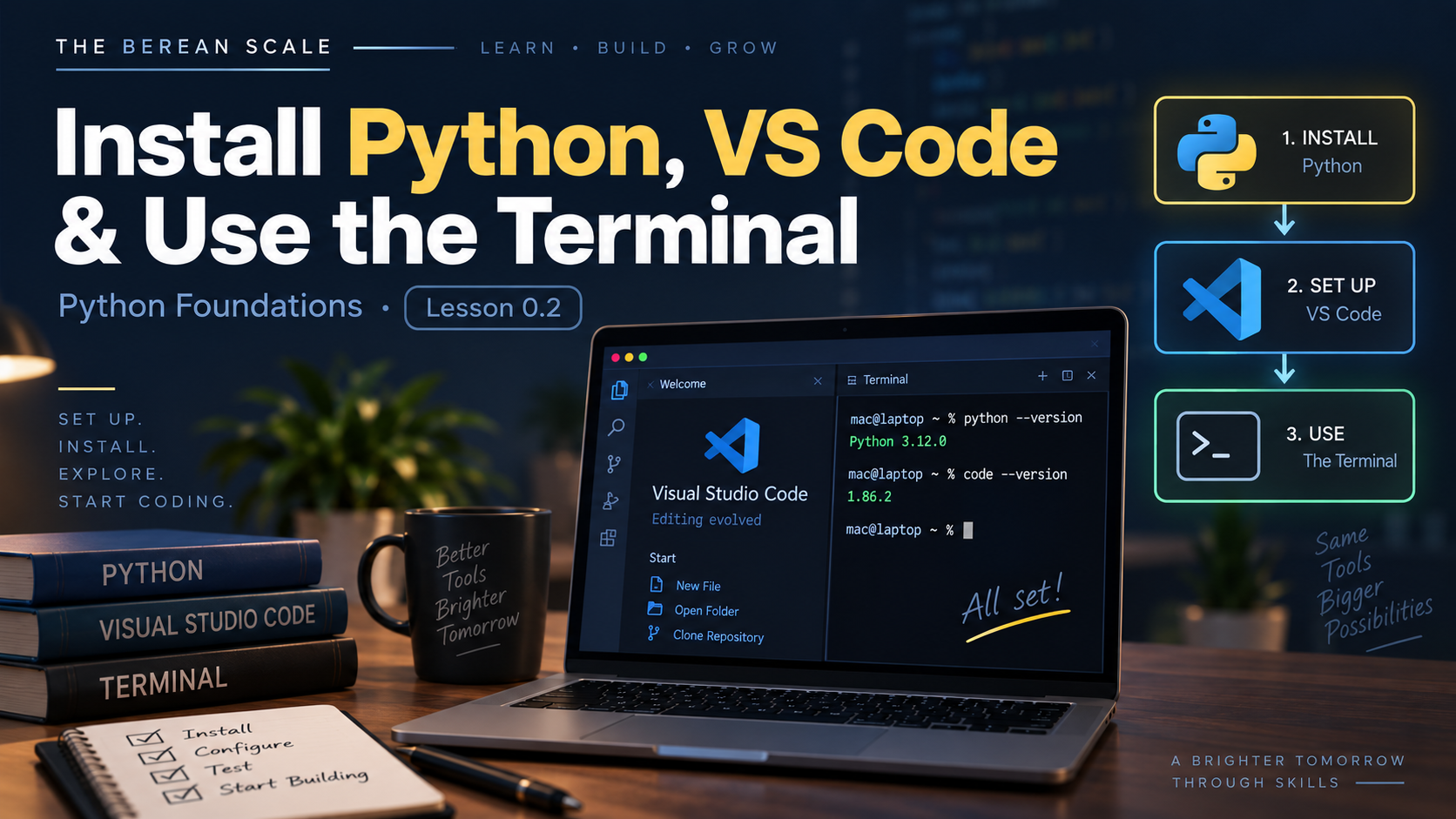
Module: Module 0 — Getting Started
Estimated Time: 30–45 minutes
Prerequisites: Lesson 0.1 — What Python Is and How Programs Work
Learning Goal
By the end of this lesson, you should have Python and VS Code installed and be able to navigate your computer using a few basic terminal commands.
1. The Need
In the previous lesson, you learned that Python lets us write instructions for a computer.
But right now, those instructions are still only examples on a webpage.
To begin programming for real, you need three things:
- Python — the language and software that will run your code
- A code editor — where you will write your programs
- A terminal — where you can navigate your computer and run commands
We will use Visual Studio Code, usually called VS Code, as our editor.
By the end of this lesson, your computer will be ready for the first program you write yourself.
2. Your Python Workspace
Before installing anything, understand what each tool does.
Python
Python reads and executes the Python programs you write.
Later, when you create a file such as:
study.pyPython will be able to run the instructions inside that file.
VS Code
VS Code is a code editor.
It gives you a place to:
- Write code
- Edit files
- Organize projects
- Open a terminal
- See programming errors more clearly
VS Code does not replace Python.
Think of it this way:
VS Code → Where you write
Python  → What runs your Python code
Terminal → How you give commands to your computer
Each tool has a different job.
3. What Is the Terminal?
Most people interact with a computer by clicking:
- Folders
- Icons
- Menus
- Buttons
The terminal gives you another way to interact with your computer.
Instead of clicking a folder, you can type a command.
Instead of clicking a program, you can tell the computer directly what to run.
For example:
python3 study.pyThat command can tell Python to run a file named:
study.pyYou do not need to memorize that yet.
The important idea is:
The terminal lets you control your computer using written commands.
As a programmer, you will use the terminal constantly.
It may look unfamiliar at first.
That is normal.
By the end of this course, it should feel like one of your normal programming tools.
4. Install Python
You need Python 3.
Do not intentionally install Python 2.
Python 2 is an older version of the language and is not what this course teaches.
Windows
Go to the official Python website:
python.org
Download the current stable Python 3 release.
During installation, look for an option similar to:
Add Python to PATHEnable it if the installer presents that option.
Then complete the installation.
macOS
First check whether Python 3 is already available.
Open Terminal and enter:
python3 --versionIf Python 3 is installed, you should see something similar to:
Python 3.x.xThe exact numbers may be different.
If Python 3 is not installed, download the current stable Python 3 release from:
python.org
Linux
Many Linux distributions already include Python 3.
Open your terminal and enter:
python3 --versionIf Python is installed, you should see something similar to:
Python 3.x.xIf the command is unavailable, install Python 3 using your distribution’s package manager or the installation instructions provided by your distribution.
5. Verify Python
Installing software is not enough.
We need evidence that it actually works.
Windows
Open PowerShell or Windows Terminal.
Try:
python --versionIf necessary, Windows may also support:
py --versionYou should see a Python 3 version.
macOS and Linux
Open the terminal and enter:
python3 --versionYou should see something similar to:
Python 3.x.xThe exact version number is not important for this lesson.
What matters is that Python 3 responds successfully.
⚖️ Put the Installation on the Scale
Do not assume Python installed correctly because the installer finished.
Verify it.
Your evidence is simple:
Python 3.x.xIf the terminal can report your Python version, Python is available.
That is our first example of an important programming habit:
Do not assume. Verify.
6. Install VS Code
Go to the official Visual Studio Code website:
code.visualstudio.com
Download the version for your operating system.
Install it normally.
Then open VS Code.
You should see the VS Code welcome screen.
7. Install the Python Extension
VS Code can edit ordinary text without any additional tools.
But we want it to understand that we are working with Python.
Open the Extensions section in VS Code.
Search for:
PythonInstall the official Python extension published by Microsoft.
This extension helps VS Code with features such as:
- Python syntax highlighting
- Code assistance
- Running Python
- Detecting Python environments
- Debugging support
You do not need to understand all of those features yet.
We are simply preparing the editor for the lessons ahead.
8. Open the Terminal
You can use your operating system’s terminal directly.
VS Code also includes a terminal inside the editor.
In VS Code, open:
Terminal → New TerminalA terminal panel should appear near the bottom of the window.
The exact appearance may differ depending on your operating system.
You may see something like:
C:\Users\student>or:
student@computer:~$or another prompt.
The prompt tells you that the terminal is waiting for a command.
9. Your Current Location
Your computer organizes files inside directories, also commonly called folders.
The terminal is always operating from a particular location.
We call this the current working directory.
To see where you are:
macOS / Linux
pwdpwd means:
print working directoryYou might see something similar to:
/home/studentWindows PowerShell
You can also use:
pwdPowerShell will display your current location.
10. See What Is Inside a Directory
Now ask the terminal what exists in your current location.
Use:
lsOn Linux and macOS, ls lists files and directories.
PowerShell also recognizes ls.
You might see something similar to:
Desktop
Documents
Downloads
Pictures
The exact result depends on your computer.
Think of ls as asking:
What is here?
11. Moving Between Directories
The command:
cdmeans:
change directorySuppose your current location contains a directory named:
DocumentsYou could enter:
cd DocumentsNow your terminal is operating inside that directory.
Check your location:
pwdThen inspect its contents:
lsYou are beginning to navigate your computer without clicking folders.
12. Moving Back
To move to the parent directory, use:
cd ..The two dots mean:
Go up one directory.
For example:
home
└── student
    └── Documents
If you are inside:
Documentsthen:
cd ..moves you back to:
studentThis command will become extremely useful.
13. Creating a Directory
Eventually, you will need somewhere to store your Python work.
A directory can be created with:
mkdir python-foundationsmkdir means:
make directoryNow check:
lsYou should see:
python-foundationsEnter it:
cd python-foundationsThen verify your location:
pwdYou have now created and entered a directory using only terminal commands.
14. A Recommended Course Directory
Create one main directory for your Berean Scale Python work.
For example:
berean-scale-pythonUsing the terminal:
mkdir berean-scale-pythonThen enter it:
cd berean-scale-pythonLater, your work may look something like:
berean-scale-python/
├── module-0/
├── module-1/
├── module-2/
└── projects/
Do not create all of those directories yet.
We will create them when we actually need them.
Remember:
Need → Concept → Practice → Application
15. Trace the Terminal
Suppose you begin inside:
/home/studentThen you enter:
mkdir berean-scale-python
cd berean-scale-python
pwd
Think through each command.
First command
mkdir berean-scale-pythonA new directory is created.
Second command
cd berean-scale-pythonThe terminal moves into that directory.
Third command
pwdThe terminal displays the current working directory.
On this example system, that would be something like:
/home/student/berean-scale-pythonThis is another form of tracing.
You are predicting what each command changes before moving to the next command.
16. Predict It
Do not type these commands yet.
Predict first.
Predict It #1
Suppose your current directory contains:
Documents
Downloads
Pictures
What should this command show?
lsPredict It #2
Suppose you are currently inside:
/home/student/DocumentsWhat happens when you enter:
cd ..Where should you be afterward?
17. Practice
Build It — Create Your Course Directory
Create a directory named:
berean-scale-pythonThen enter that directory.
Finally, display your current working directory.
Your work is complete when:
- The directory exists
- You can see it with
ls - You can enter it with
cd pwdshows that you are inside it
Explain It
In your own words, explain the difference between:
pwdand:
lsThen explain what:
cddoes.
Do not worry about giving dictionary definitions.
Explain what each command does to someone who has never used a terminal.
Fix It
A student wants to enter this directory:
berean-scale-pythonBut they type:
cd berean-pythonThe terminal reports that the directory does not exist.
What should the student check first?
Think about what the computer was actually told to do.
18. The Narrow Path — Common Mistakes
Typing the wrong directory name
The terminal is literal.
If the directory is named:
berean-scale-pythonthen this is different:
berean-pythonCheck spelling carefully.
Forgetting where you are
Beginners often type commands without knowing their current directory.
Use:
pwdAsk:
Where am I?
Then use:
lsAsk:
What is here?
Those two questions solve many beginner terminal problems.
Confusing Python with VS Code
VS Code is where you write code.
Python runs Python code.
Installing VS Code does not automatically mean Python is installed correctly.
That is why we verified Python separately.
Copying commands without understanding them
Do not turn the terminal into a place where you paste mysterious commands from the internet.
Before running a command in this course, you should have a basic understanding of what it is supposed to do.
19. Check Your Understanding
Answer these in your own words:
- What job does Python perform?
- What job does VS Code perform?
- What is the terminal?
- What is a current working directory?
- What does
pwdshow? - What does
lsshow? - What does
cddo? - What does
cd ..do? - What does
mkdirdo? - Why did we verify the Python installation instead of simply assuming it worked?
Command Reference
You do not need to memorize every command immediately.
Use this as a reference:
| Command | Purpose |
|---|---|
pwd | Show your current directory |
ls | List what is inside the current directory |
cd name | Enter a directory |
cd .. | Move up one directory |
mkdir name | Create a directory |
python3 --version | Check Python 3 on macOS/Linux |
python --version | Check Python on many Windows installations |
py --version | Check Python through the Windows launcher |
Graduation Standard
Do not move forward until Python 3 and VS Code are installed, you can verify Python from the terminal, and you can use
pwd,ls,cd,cd .., andmkdirwithout blindly copying the commands.
Your development environment is now ready.
In the next lesson, you will create and run your first Python program yourself.